> ## Documentation Index
> Fetch the complete documentation index at: https://guide.trycentral.com/llms.txt
> Use this file to discover all available pages before exploring further.
# Setting Up Zapier
> A quick guide on how to set up Zapier for Central AI Reception
Zapier allows you to connect Central AI to over 8,000+ apps in Zapier's app list. Central's AI Receptionist has its own Zapier app, enabling you to trigger Zaps using inbound calls.
Here's how you do it-
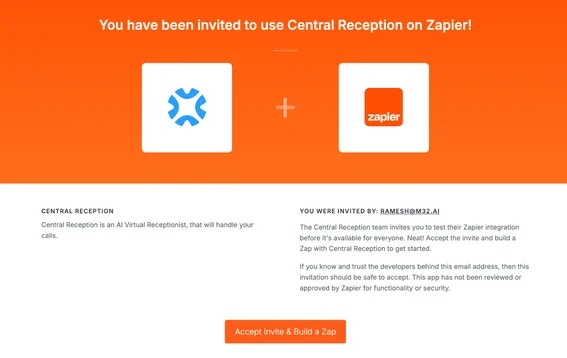
1. Accept our Invitation on zapier.com/developer/public-invite/225535/dca673411b24858a79418d1a5061fe12/ by clicking on “Accept Invite and Build a Zap”
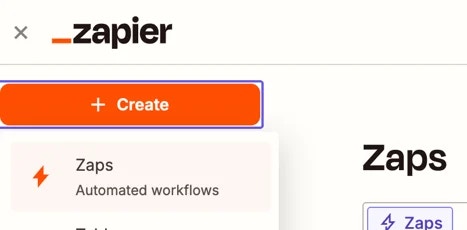
 2. Create a new zap by clicking on “Create” and then “Zaps”
 3. Click on “Trigger” in the new Zap.
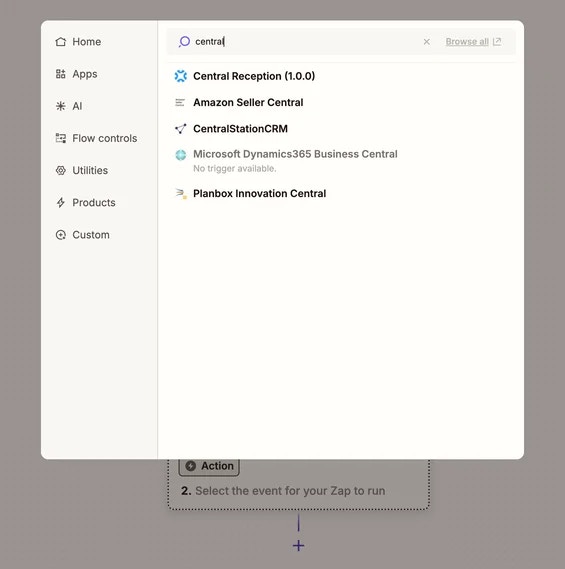
.webp?fit=max&auto=format&n=tvJRZ925LoEnfs4F&q=85&s=49d3d3628999ece2e9ca8f267c8269ce "Google 1751330893844 Jul 01 2025 12 48 18 0377 AM (1)") 4. Search for "Central Reception" in the Zapier app directory and select it.
4. Search for "Central Reception" in the Zapier app directory and select it.
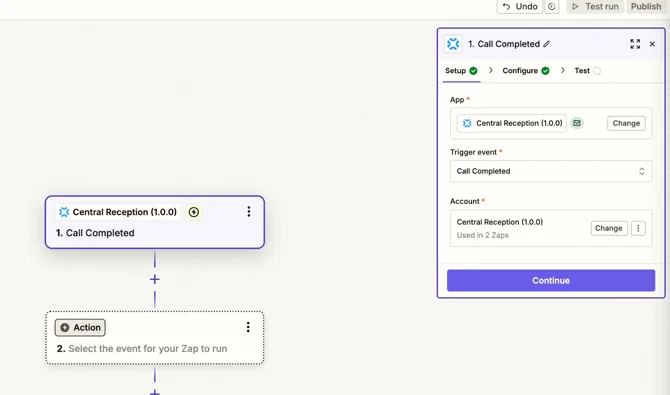
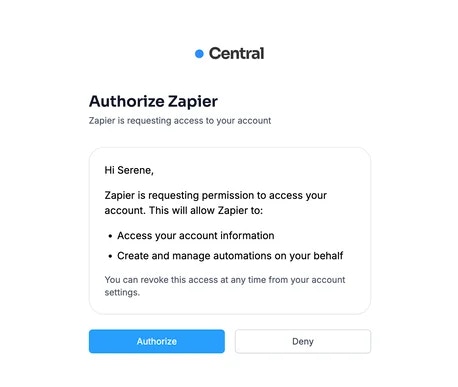
 5. Once Central Reception is added, select the trigger event (e.g. “Call Completed”) and connect your Central account to Zapier by authorizing Zapier access to Central.
 6. Click on “Authorize” when prompted:
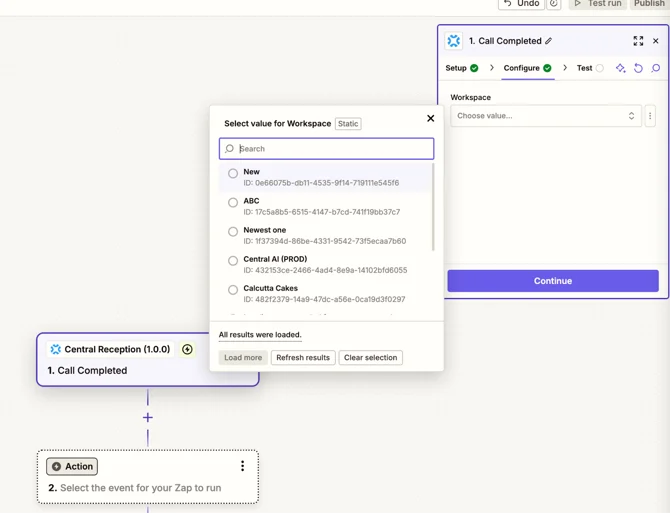
 7. Once your Central account is connected to Zapier, you can select the applicable workspace where you want to set up automations for
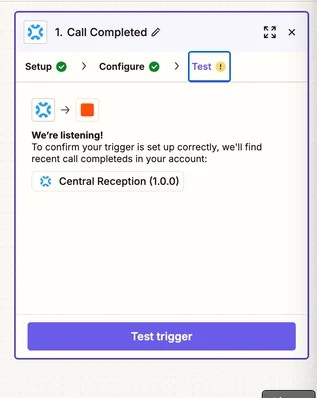
 8. Make sure the trigger works properly by testing the trigger.
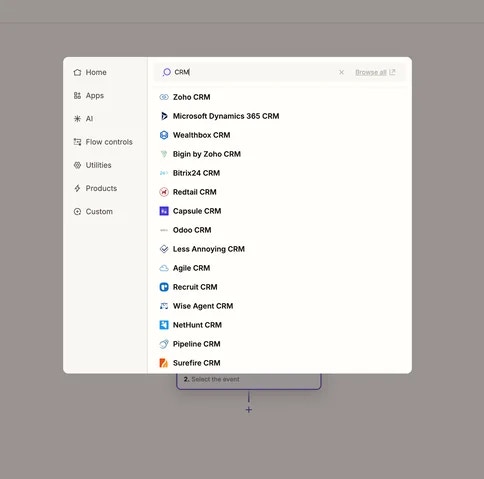
 9. After the trigger is set up properly, you can set up any automations you want by clicking on “Action”.
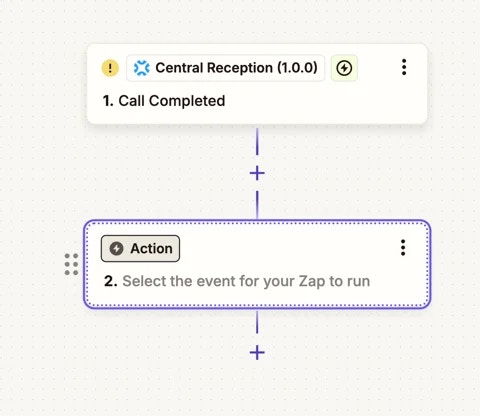 10. Feel free to select any CRM or communication channel you would like to connect Central to.
 That's it! You've successfully connected Central AI Reception to Zapier, and can now connect your Reception to 8,000+ apps on Zapier's app list.
Use our Zapier app. You can explore our Zapier app here: [https://zapier.com/apps/central-ai/integrations](https://zapier.com/apps/central-ai/integrations)
That's it! You've successfully connected Central AI Reception to Zapier, and can now connect your Reception to 8,000+ apps on Zapier's app list.
Use our Zapier app. You can explore our Zapier app here: [https://zapier.com/apps/central-ai/integrations](https://zapier.com/apps/central-ai/integrations)