.svg?fit=max&auto=format&n=FHWUZ-j-Whe1NQ6e&q=85&s=b9f442f2722868300bf4a6efaf0c56f6)
-
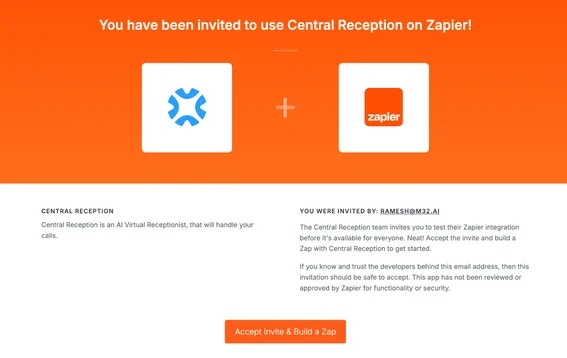
Accept our Invitation on zapier.com/developer/public-invite/225535/dca673411b24858a79418d1a5061fe12/ by clicking on “Accept Invite and Build a Zap”
-
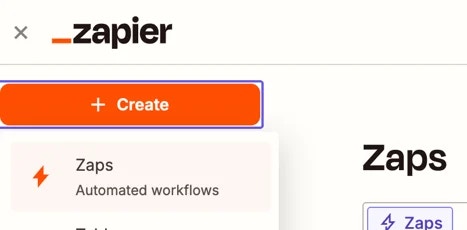
Create a new zap by clicking on “Create” and then “Zaps”
-
Click on “Trigger” in the new Zap.
.webp?fit=max&auto=format&n=tvJRZ925LoEnfs4F&q=85&s=49d3d3628999ece2e9ca8f267c8269ce "Google 1751330893844 Jul 01 2025 12 48 18 0377 AM (1)")
-
Search for “Central Reception” in the Zapier app directory and select it.
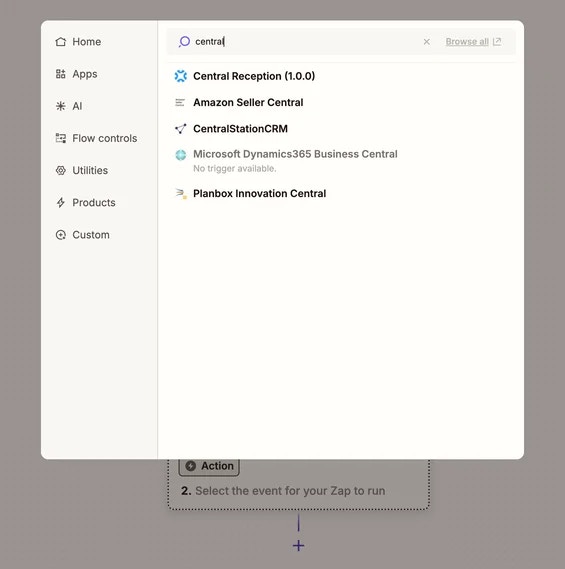
- Once Central Reception is added, select the trigger event (e.g. “Call Completed”) and connect your Central account to Zapier by authorizing Zapier access to Central.
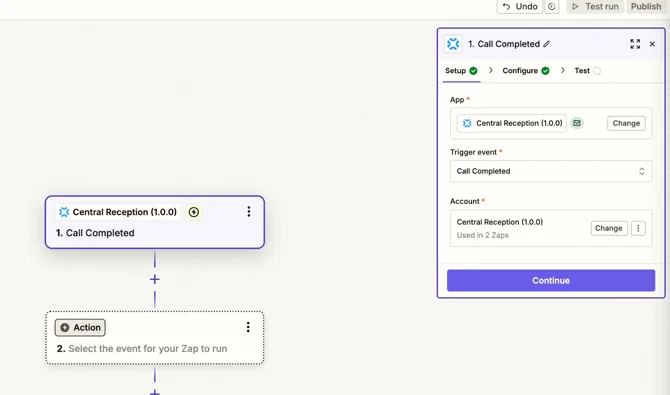
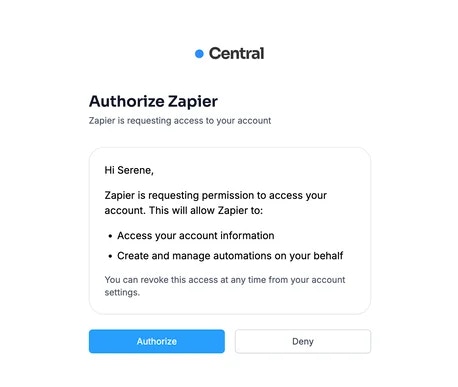
- Click on “Authorize” when prompted:
-
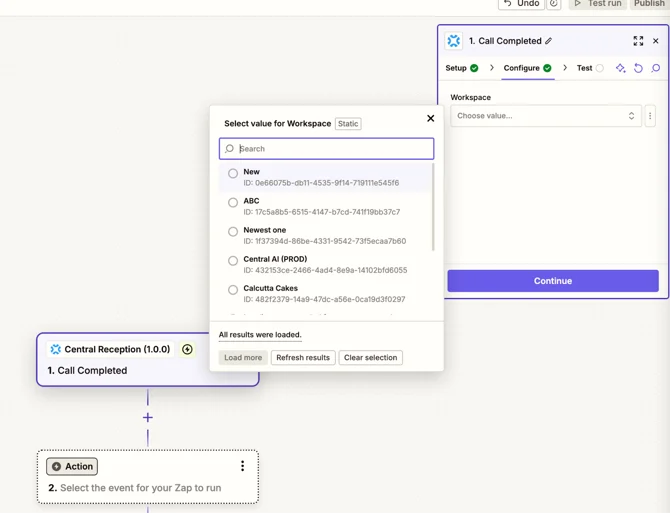
Once your Central account is connected to Zapier, you can select the applicable workspace where you want to set up automations for
-
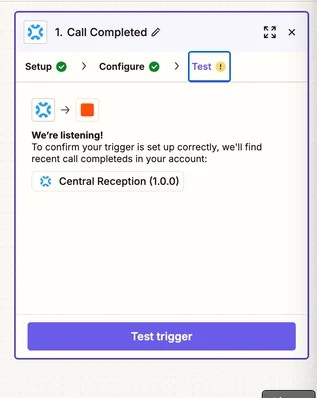
Make sure the trigger works properly by testing the trigger.
-
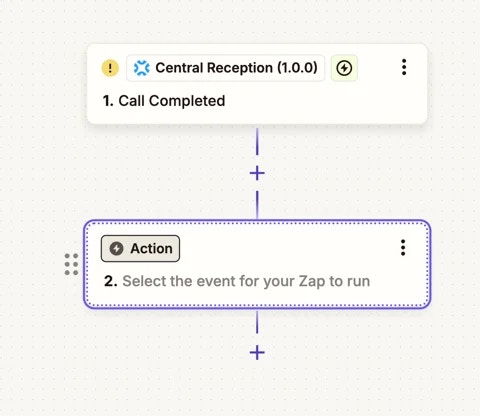
After the trigger is set up properly, you can set up any automations you want by clicking on “Action”.
-
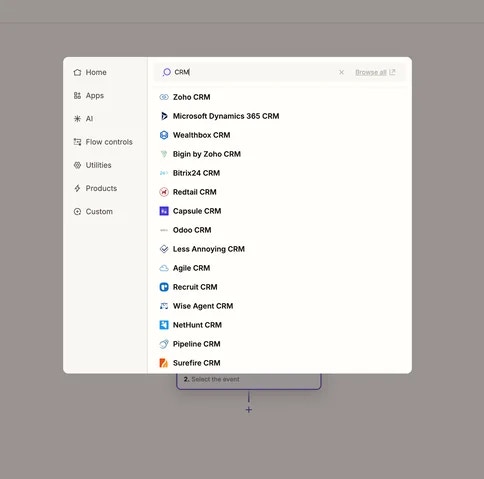
Feel free to select any CRM or communication channel you would like to connect Central to.