Step 1. Within Central, head over to the “Chats” section in the left-hand menu. Then click on “Integrations” > “WhatsApp”Step 2. Next, click on the “Continue with Facebook” button.Step 3. This should open up a popup to login to your Facebook Account. Login with your Business account using your Email ID and Password, and then click “Get Started”
If the popup does not open, please make sure that your browser has popups enabled for Central.
Step 4. Fill in your business information, including your business portfolio, name, website, and country where it is based. If you don’t already have a business portfolio, you can create one at this point.Step 5. You can now either use an existing WhatsApp Business account or create a new one.Step 6. Lastly, review your access settings and click “Continue”. In a few moments, your Whatsapp business account will be connected to Central and ready to use. Click “Finish” and continue the rest of your setup on Central.Step 7. Next, you can either purchase a new phone number(Toll-Free or Local), or use an existing number if you have already purchased one.
If you purchase a Toll-Free number, you can reuse the same one for an SMS integration as well. We currently don’t allow the usage of local numbers for SMS
Buying a new number
Click on the “Buy a new number” button, select whether you want to purchase a Toll-Free or Local number, your country, your state/province(if buying a local number)
Click “Search for Numbers” and select your desired phone number
Click “Purchase Selected Number”, select your payment method, and make the payment
Click on “Select a number” and select your purchased number. If the number does not load, click the “Refresh” button
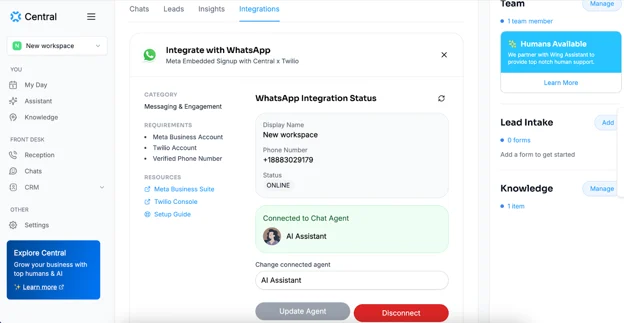
Step 8. Once you are done either purchasing a new number or selecting an existing one, click on “Register Number”Step 9. Now, you can connect your previously created Chat Agent to this WhatsApp line. If you haven’t already created one, you can create it nowOnce you select your desired Chat Agent, click “Connect Agent”Your Chat agent is now ready to go live! Test it out by messaging your number on WhatsApp to see how the bot works.You can come back to the same page to make any necessary changes.

.svg?fit=max&auto=format&n=FHWUZ-j-Whe1NQ6e&q=85&s=b9f442f2722868300bf4a6efaf0c56f6)


 Step 5. You can now either use an existing WhatsApp Business account or create a new one.


 Step 9. Now, you can connect your previously created Chat Agent to this WhatsApp line. If you haven’t already created one, you can create it now
Once you select your desired Chat Agent, click “Connect Agent”
Step 9. Now, you can connect your previously created Chat Agent to this WhatsApp line. If you haven’t already created one, you can create it now
Once you select your desired Chat Agent, click “Connect Agent”
 Your Chat agent is now ready to go live! Test it out by messaging your number on WhatsApp to see how the bot works.
You can come back to the same page to make any necessary changes.
Your Chat agent is now ready to go live! Test it out by messaging your number on WhatsApp to see how the bot works.
You can come back to the same page to make any necessary changes.